
Update: Web-push notifications are now enabled for the Chrome browser. This article has been updated with new information.

How many subscription channels are you offering on your blog?
If you haven’t already enabled the must-have subscription options, you should do that now.
With recent advancements in technology, there are now a few new methods that you can use to notify your readers of the latest posts or important updates from your blog.

Today, I will be talking about PushEngage: A web push notification service for WordPress. It also supports other platforms like e-commerce sites, WooCommerce, Joomla, Drupal, bbPress & much more.
Before moving ahead, let me show you how much traffic I got in 3 days from PushEngage:

Using the PushEngage service, you give another subscription option to the readers of your blog who are using Chrome (all platforms) or Safari on Mac OS.
Read: Benefits Of Web Push Notifications For Bloggers – Powerful Marketing Tech
If you are using a smartphone (iOS or Android), I’m sure you are aware of push notifications sent by your installed apps. Web-push notifications are similar to smartphone push notifications where your subscribers will be notified when a new post is published or when you manually send a push notification.
PushEngage is an awesome service that allows you to send these push notifications.
In this tutorial, I will show you how easy it is to enable push notifications for your WordPress blog.
You should open your WordPress blog’s admin panel and follow along with this tutorial. Within 5 minutes, your WordPress blog will be web-push notification enabled.
How to Get more subscribers & traffic with browser Push Notifications
At this moment, this service supports the Chrome browser on all platforms (mobile & desktop) and the Safari browser on Mac OS. In the future, we can expect it to support other browsers like Firefox.
The setup part is quick and easy. So let’s get started with this step-by-step guide.
First, go ahead and create an account on PushEngage over here.
The free account allows you to send 30 campaigns per month for 2,500 subscribers, which is a decent number for a small and medium-sized website.

Once you have signed up for an account, you need to add your blog’s name and add your blog’s logo. This is useful for the branding of your push notifications.

- Go to Plugins > Add New and search for “PushEngage”. Install and activate the plugin. <Link of the plugin>
- Upon activation of the plugin, click on PushEngage > Dashboard. To activate the plugin you need to get the API Key from your PushEngage account. I have marked the points in the below image that will help you create the API Key.
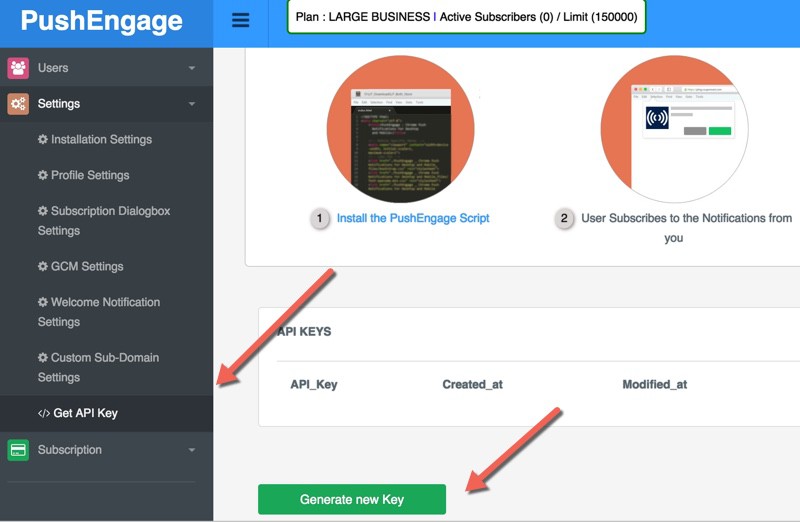
Once you are done activating the plugin, now you need to configure the subscription settings.
- Go to Settings > Installation Settings & add your logo. (This is important for your brand identity.)

Subscription Dialog Box Settings
This is where you will configure the prompt that users will see to subscribe to your push updates. I use “Single Step Optin” for ShoutMeLoud & I suggest the same for you. “Safari Style Box” is another popular method.

Once you are done and logged in, you will see a dashboard like the one below (in the screenshot). It will show you the stats of existing subscribed users and other details.
You can click on the “Send A Notification” tab to send a custom push message anytime.
GCM Settings
This value is pretty crucial & you really should create your GCM account.
If you are not so tech-savvy, you can ignore it. However, using this documentation will make the process easier.
Welcome Notification

This step is optional.
If you want to send a welcome message to users who subscribed to your notifications, use this feature.
You can ask users to download your mobile app or send them to your top resources.
Stats
Here is a Stats report of push notifications from ShoutMeLoud:

In your post writing section, you will see an option to send push notifications when you publish or update a post.

Try not to send too many push notifications in a short span. In the next guide, I will share a few tricks of PushEngage to help you make the most out of push notifications.
Do let me know your experience with web-push notifications. Do you know of another modern subscription option that I should cover here on ShoutMeLoud?
November 2023 update:
PushEngage added a new feature called template, which will help you make a campaign live quickly with pre-made template. These templates are designed for higher conversions.
Let me know how you are increasing Push notifications to grow your website traffic and profit?
Here are a few hand-picked articles for you to read next:
- ShortPixel Review: How To Automatically Compress & Optimize WordPress Images
- Decoding 3 Best Solutions For Interlinking Blog Posts In WordPress
- How To Drive Huge Traffic To Your Blog In A Few Weeks




Hi Harsh,
I wanted to add this feature, but this time with the help of your post i will be doing.
Thanks for great share.
Looks like you’re not using Pushengage on shoutmeloud.com anymore? Didn’t get a permission notification (using Firefox) and a site scan did not show the Pushengage plugin.
Any particular reason you removed it?
@Chris
We are using Pushengage only. Most probably it got deactivated due to our recent migration from HTTP to HTTPS. Looking into it. Should be fixed within 24 hours.
Tks Harsh.
I installed Pushengage. Then decided to uninstall it (deactivated and deleted). Pushengage left the code on my site somehow. Users are still getting a popup asking them to opt into push from Pushengage even with no plugin active.
I’ve contacted Pushengage about this. It’s disappointing that uninstalling Pushengage does not actually uninstall it.
@Chris
Try flushing your cache. If you are using Cloudflare, purge cache from there too. It will be fixed. I saw your comment about forum push, I removed it. I recently moved ShoutMeLoud from HTTP to HTTPS & that caused the issue. Still need to move forum to https.
Do let me know if above solution fixed your problem or not.
Tks Harsh for your message.
We do use Cloudflare. I just purged the Cloudflare cache and WordPress cache. I also cleared the cache in Firefox.
The Pushengage JS script is still on our pages though. People are getting the opt-in message for a push service we’re not using. Bummer. Fyi the site is http://blog.itviec.com.
I contacted Ravi the Pushengage CEO. He was very responsive. He said he believes the code does not come from the plugin and that one of our devs must have added it somewhere. That can’t be right because we don’t have any devs working on our WordPress site. We added the Pushengage plugin last week, then deactivated and deleted a few days later. Yet the code still is on our site.
It appears to be a bug that the Pushengage team is unaware of.
Chris – I wanted to share our views in this forum as well. We have exchanged emails and tested this issue thoroughly again and we found the code was removed each time plugin is deactivated.
Further, any addition of PushEngage code in WordPress automatically has a version number of the format
This is used internally in few things, and the fact your code does not have the ?ver implies it was not added using automated manner.
We request you to look at couple of things
1) You have GTM on your blog so check that if you used that.
2) This is placed next to Facebook pixel, and in between the pixel so check how you added FB pixel.
Hope you are able to resolve this soon.
Hi Ravi,
Thanks for your excellent support.
Per your instruction the culprit appeared to be a plugin called WP Facebook Pixel. It adds a FB tracking pixel to each page. Somehow it got mixed up with Pushengage. I deactivated this plugin, then reactivated it. That removed the code.
Again, thanks for being so responsive. I appreciate it!
Cheers,
Chris
Hi Harsh, informative post! I have been seeing these push notifications offers popup for a while in my browser every time I visited your blog, but quite honestly I was confused about it. I think there needs to be better/clearer instructions (which probably would need to be implemented by the PushEngage techs) on how a person needs to subscribe to this. Like when it shows up it says something by default like “Always subscribe to Push Notifications” and then it’s just sitting there like that and I always thought I was subscribed since it was just sitting there showing “Always Subscribe” and it didn’t say or really move me intuitively to do anything else.
But then today something told me to actually click on where it says “Always Subscribe”. Then that’s when I realized that all this time I had never really been subscribed to your push notifications; I just thought I was. So in my opinion they need to work on better prompts for this – especially being that this is a new technology and many visitors might be confused by it. It just needs to be more intuitive for people to subscribe and I’m sure I’m not the only person on the web who has been confused by this.
Hi,
Is there any way to use pushengage notification in joomla site ??
@Utkarsh
yes, you can!
You can add codes directly & use Pushengage dashboard to send notifications.
Thanks Harsh for such an informative article. I am currently using Pushchamp for web push notifications and it has attempted to change how we have been managing the delivery and usability of notifications. I am happy with their services but this article has given me a very clear insight for blog push notifications.
Hi,
This was the most and easy way for me to integrate pushengage on my website. Does this help to increase website ranking on Search engines?
Hi Harsh,
Would be checking out Pushengage. Right now, I am using Pushwoosh for my app. The free version is good to send push notifications and does the job quite well.
Hi Harsh I have tried this after reading your post and it is very easy to implement as well as useful tool. But have one issue it is using lot of resources and hence increasing my site load time which again is not a good sign. Is there any solution for same
Hi Harsh,
Is there any way to install plugins into free wordpress.com or any other method that can be implemented without using plugins for a special function to be achieved?
I have a question, I read somewhere that reader only receives notification when he is online. what about the push notification subscribers who are not currently on their desk.
Do they get notifications when they comes online or we can send notifications to online people only?
I it possible to remove the powered by pusengage.
and just show the push notification.
@Mohan
You need to grab the business plan for them to remove the branding. This cost only $49/month & offers up to 50K followers.
You are on which Plan?
I still see shoutmeloud.pushengage.com
thats somehow not complete removal of branding.
This is because HTTPS URL is required for subscription and sending. We create a subdomain for each of you, which you can use. You are also free to use your subdomain like https://notify.example.com which can remove the PushEngage branding.
I actually own a blogspot custom domain blog and ony blogger dashboard settings tab it says HTTPS is currently not available for custom domain blogs (I do not know what HTTPS is) but as you wrote above HTTPS is required! So will I be able to use push engage?
Hi Harsh I have tried this after reading your post and it is very easy to implement as well as useful tool. But have one issue it is using lot of resources and hence increasing my site load time which again is not a good sign. Is there any solution for same
@Amit
Use the tools.pingdom.com to see which script is taking maximum time to load. In the result tab, scroll down & sort the graph based on loading time. This would make you ensure which all scripts are increasing the loading. Any script should not take more than 100ms or 200ms in worse case scenario.
Yes I tried pingdom and gmatrix only and found that this increased my website size considerably high as well as my loading time increased after deactiving it, my speed again went to normal
Hi Amit, There are scripts that run in the background and hence these scripts increase the page load times. Anything that adds a script to the head tag will impact the page load time. Pushengage adds a script to the head tag and that is why you are seeing it impacting the loading time.
The only way you can speed up your website is by combining multiple scripts into one. There are many plugins that can help you do that.
Regards
Dilip
Hey Harsh,
Nice to hear from you after a while.
Good to know the new offer on the eve of Independence Day. 🙂
Waiting for it!
This plugin looks like a wonderful one.
I will install it and come back to you soon.
Thanks for sharing this easy tho do Tuto.
Happy Independence Day.
~ Philip
Great tutorial Harsh sir, I have successfuly added push notifications in my new english blog. Thanks for sharing.
Hi Harsh,
It’s amazing to know about the technique , I was just googling about I got your article It helps to follow the step one by one in correct way
Thanks a lot
Yes I see most of the bloggers using push notifications. This is the easiest way and good alternative to pop ups if I’m not wrong.
I would install it today and will check the response.
Nice article.
Thanks, Harsh
Hey Dumaji,
Happy to help.
Hello,
This post earlier says that this is free. But at the end you say this is available at a 30% discount? Please clarify.
Hey Ashwin,
Pushenngage offers five plans: free, enterprise, business, large business and pro. You can use free plan up to 2500 active subscribers which is a pretty decent amount for a small-medium blog. The other plans are paid, and the discount coupon is for those plans.
This is truly what I am looking for my blog. An announcement will help push back rate increases user’s website. Thank Harsh.
Hey CuongPjh,
Happy to help.
Thanks Harsh for explaining the nitty-gritty of PushEngage. I saw this on your website first time and thought to do same on mine too but was unsure on few things. Now I have something to refer back while doing it on my website. Great Info. Thanks again!!
Hey Harpreet,
Glad that you found it useful. Do share your feedback with us.
I had no idea that pushengage offers free account!! Thank you so much sir for this step by step tutorial. I’m going to install it on my blog right away!